Active Directory Lab (WS2022)
Creating a Virtual Lab for Safe Cybersecurity Testing and Attack Simulation
I am creating this virtual lab to provide a safe, isolated environment where I can test cybersecurity techniques, simulate real-world attacks, and study how systems respond without risking production networks or sensitive data. This version is also more recent than a previous installation an could be used as base virtual machine for future projects by cloning it.
Setting up Virtual Machines
First step is to create a new virtual machine for the windows server and the windows client. Click on file, then New Virtual Machine, select typical (recommended). Make sure to select the option to install the operating system later.
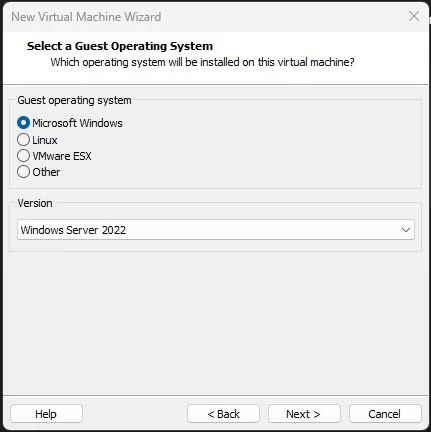
We are going to install the server first, so click on Microsoft Windows and use the version 2022. Put in the right directory, I set 2 cores and 2GB of RAM as resources for the server. At the end click finish.
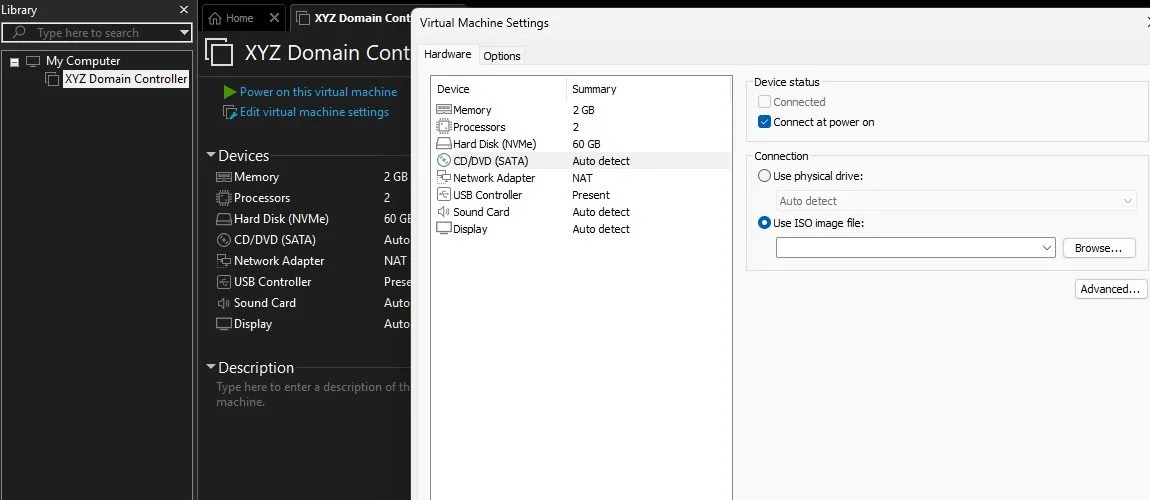
Right click on XYZ Domain Controller, go to CD/DVD (SATA), and then select Use ISO to install the operating system. Put the right ISO file in and then start installation by clicking on Power on.
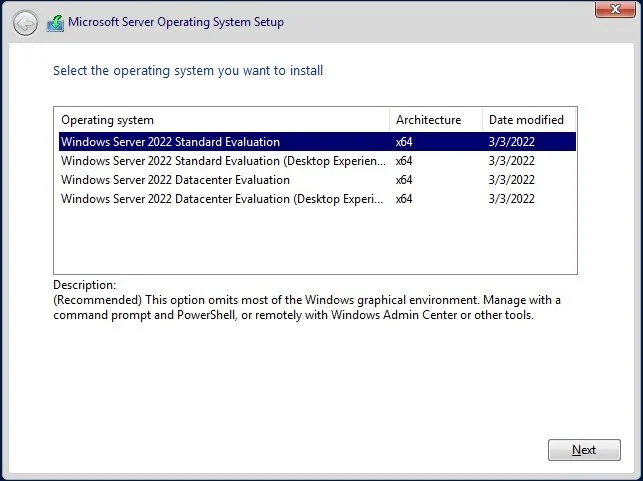
For this project I am using the Windows Server 2022 core, so the version without GUI, which also means a smaller attack surface for the threat actor. Then select custom storage and install the OS.
Right at the start when the installation is done, the command line is going to ask you for a password, I used Password123!
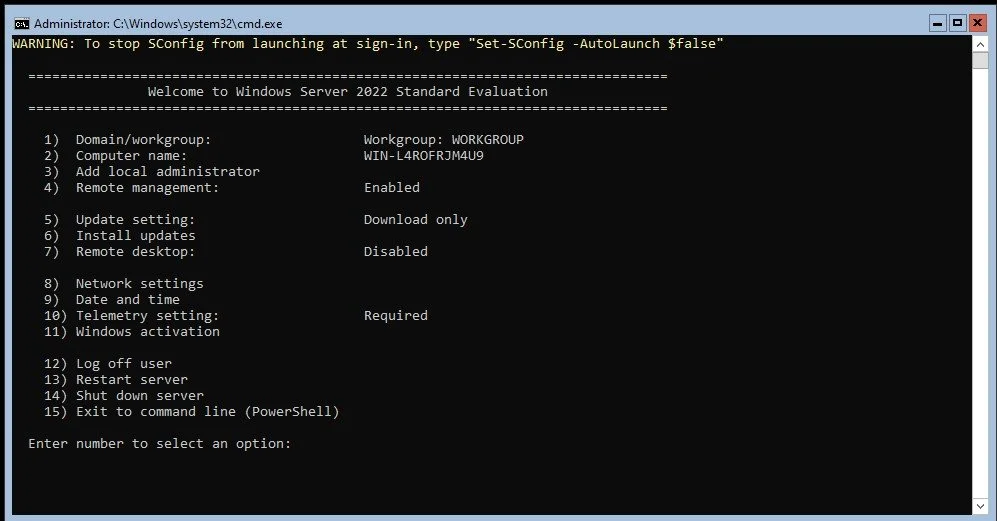
This is how it should look like when everything is set up. First thing I did was install the updates by pressing 6 and then 1 to install all updates, restart after installing updates.
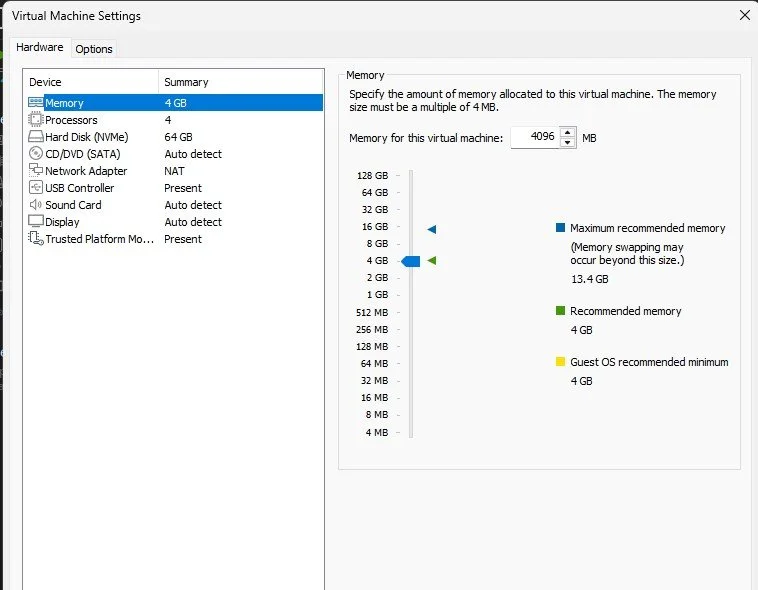
To create the windows 11 virtual machine is almost the same process the only hindrance is that we want to install the OS without the tpm key to be able to create linked clones of the windows 11 whenever we want. I used 4GB of RAM and 4 CPU cores.
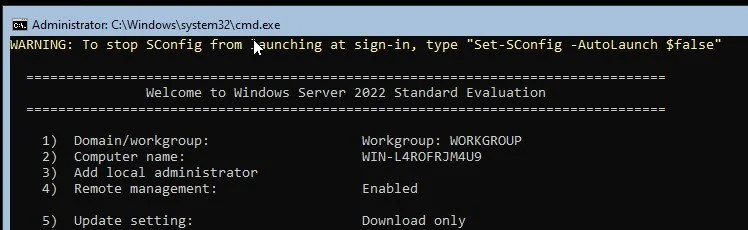
If you get the warning Set-SConfig -AutoLaunch $false, go to powershell with option 15 and copy paste the command. Then to reboot use command shutdown /r /t 0.
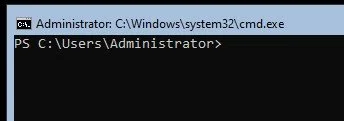
After reboot it should look like this.
Removing TPM
Start by clicking Shift+F10, to get command prompt.
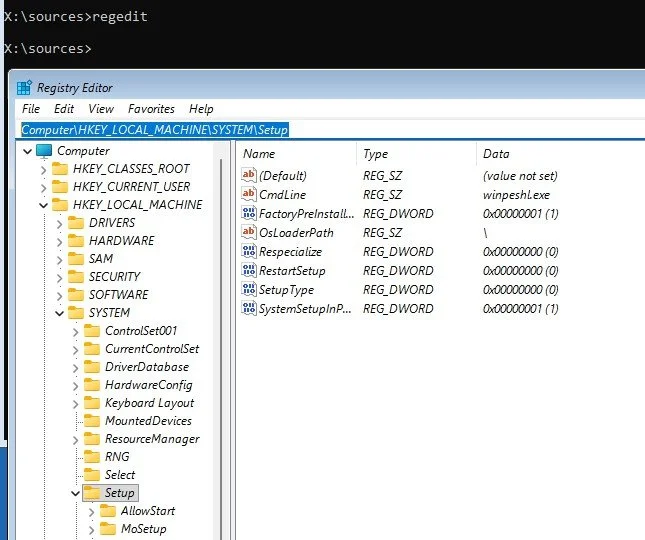
Write regedit on command prompt, go to Computer\HKEY_Local_MACHINES\SYSTEM\Setup
Create new folder right clicking Setup and then selecting Key, rename the folder to LabConfig
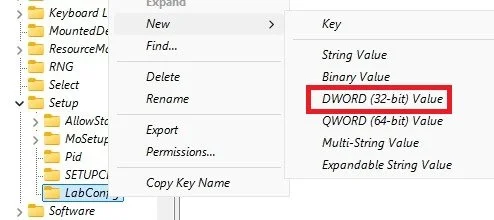
Then right click on LabConfig and use DWORD (32-bit) Value.
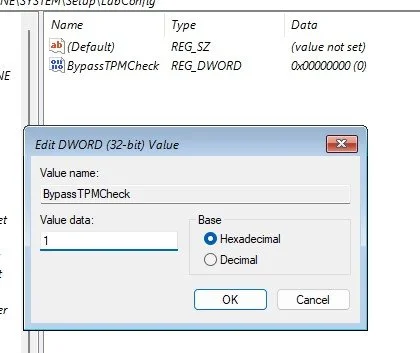
Make sure to call the DWORD BypassTPMCheck and set it to 1.
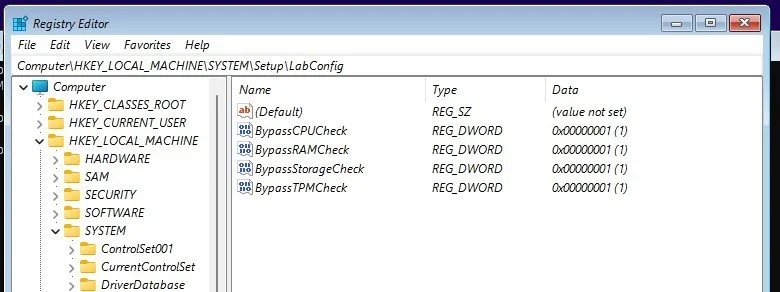
Do the same for RAM, CPU and Storage.
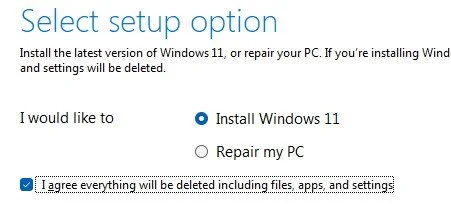
Than you can proceed to install the Windows 11 without having the need for an TPM key, meaning it will be easy to make linked clones in future projects whenever needed. Make sure you install the Windows 11 Pro version.
Cloning Test
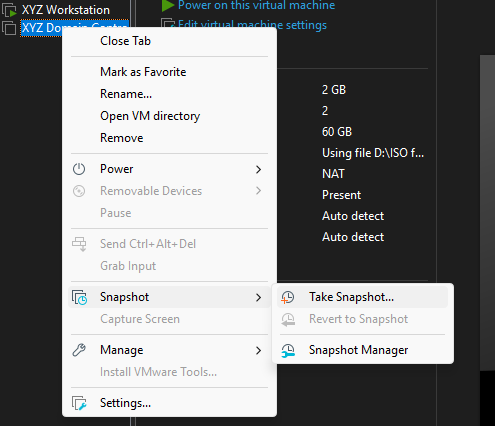
First we are going to clone the server, right click on the server virtual machine and click on Take Snapshot.
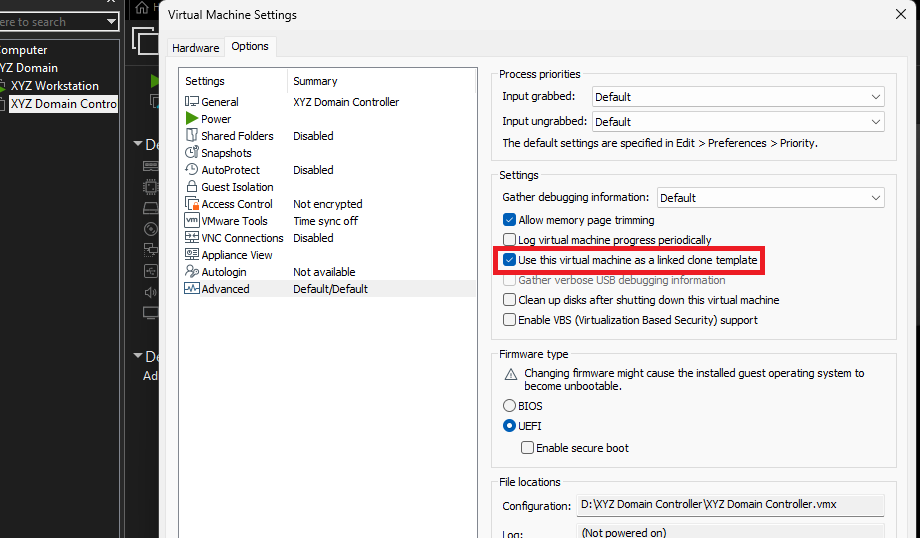
Right click on the server virtual machine again, click on settings, go to options and then select Use this virtual machine as a linked clone template.
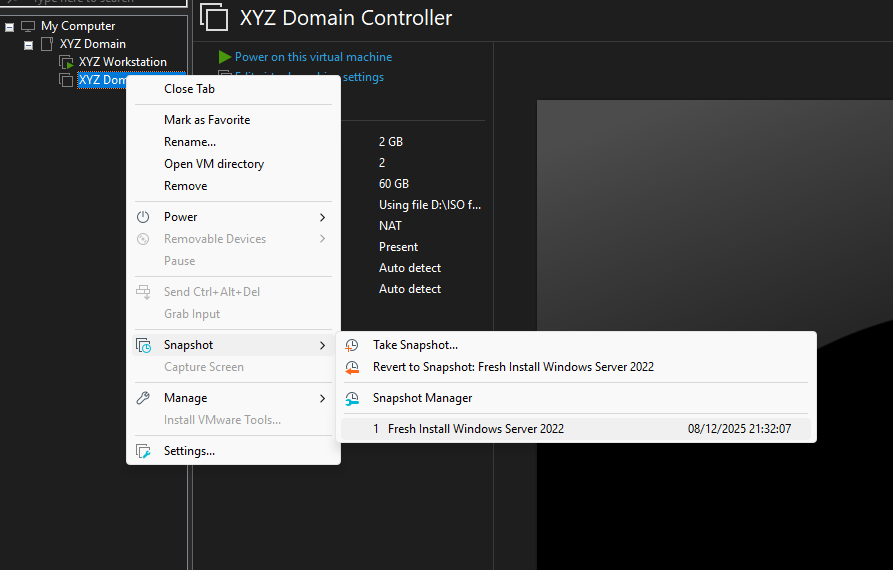
Now every time you need a new fresh installation of windows server 2022 you can get it with just right clicking this server virtual machine.
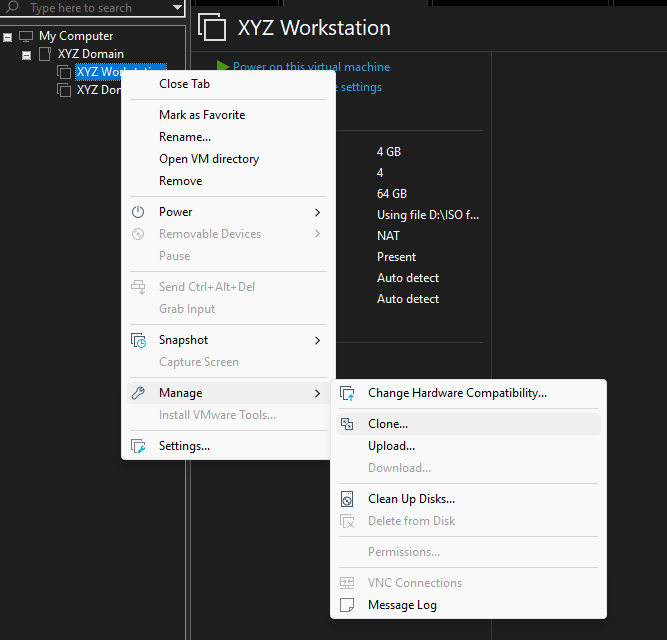
Now to clone the workstation which could have some difficulties throught the OS or VM encryption, select Manage, click on clone.
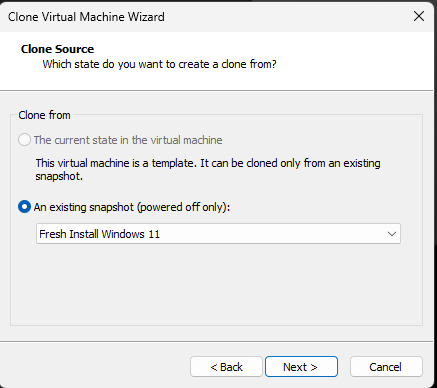
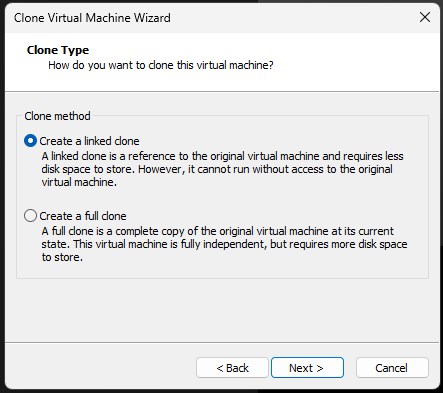
If you are not able to create a linked clone that means that your VM is still encrypted either by the OS or the vm software, in that case you to delete it manually either in the guest OS files or throught the vm gui. Here are the two methods on how to do it:
Video on bypassing vmware encrpyption method 1: https://www.youtube.com/watch?v=QLdfYUYA_qU
Video on bypassing vmware encrpyption method 2: https://www.youtube.com/watch?v=TAxQiqSBOW4&t=210s
Installing VM-Tools
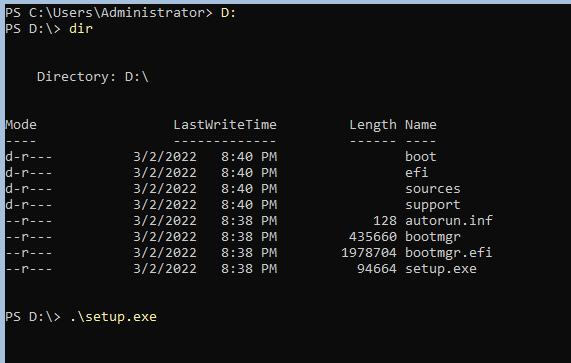
To be able to install the VM-tools to get benefits like drag and drop options, we have to first get to the D: directory tnen use .\setup.exe
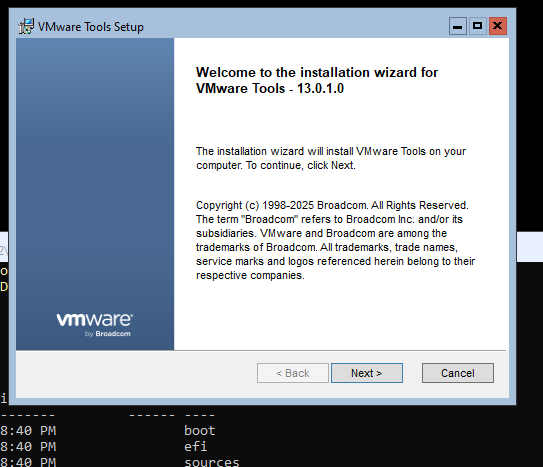
It should look like this, just follow the instructions and then install it.
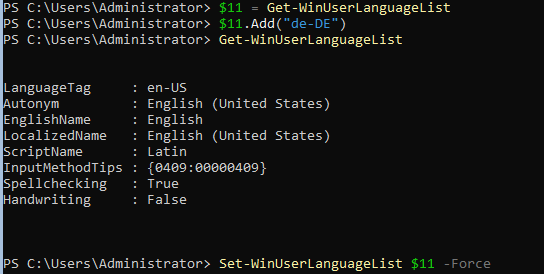

Use these command to be able to add and use another language. To alternate between both languages use ALT+Shift.
Sources
Video on bypassing Windows 11 TPM: https://www.youtube.com/watch?v=179gR7V9fSw (outdated)
Video on bypassing Windows 11 TPM: https://www.youtube.com/watch?v=uz6rXjfd9M4&t=32s
Video on how to put ISOs on USB with Rufus: https://www.youtube.com/watch?v=NSRCZEKDMK8&t=115s
Video on installing ISO to vmware with rufus usb: https://www.youtube.com/watch?v=kwrdIjO8aFw&t=10s
Video on bypassing vmware encrpyption method 1: https://www.youtube.com/watch?v=QLdfYUYA_qU
Video on bypassing vmware encrpyption method 2: https://www.youtube.com/watch?v=TAxQiqSBOW4&t=210s
Software used:
Windows server 2022: https://www.microsoft.com/en-us/evalcenter/download-windows-server-2022
